Setup guide

From sign-up to your first reply, in seven short steps.

This is the real setup, shown screen by screen. You answer a few questions, connect your Instagram, and watch your AI reply in your own voice. No code, nothing to install, nothing to paste. And nothing reaches a real follower until you say so.

7 guided stepsabout 9–15 minutesyour progress saves automatically

Before you start: one thing to check

You’ll need an Instagram professional account — the Creator or Business type, not a personal one — and you need to be able to log into it. This is the single most common thing that trips people up, so sort it first and the rest is smooth.

Switching is free and takes about two minutes in the Instagram app: open Settings, then Account type, and choose Creator or Business. Already switched? You’re ready.

The walkthrough

The seven steps, exactly as you’ll see them.

Each step below matches the screen you’ll see. Follow along top to bottom — your progress saves automatically, so you can stop and come back anytime.

Step 1 of 7 about 2 minutes

Tell us about your business

Gives DOMS the basics it needs so replies fit your world from the first message.

Your name, your business name, your time zone, and what kind of business you run — coaching, courses, e-commerce, local services, and more. Pick the closest fit; it chooses your starter Flows and the first version of your voice. The moment you pick, you’ll see a sample of what your AI would say out of the box.

You’ll know it worked: You land on the next step with your name shown.

If that didn’t work: Can’t find your kind of business? Pick “Other” — the setup still works, and you can refine everything later.
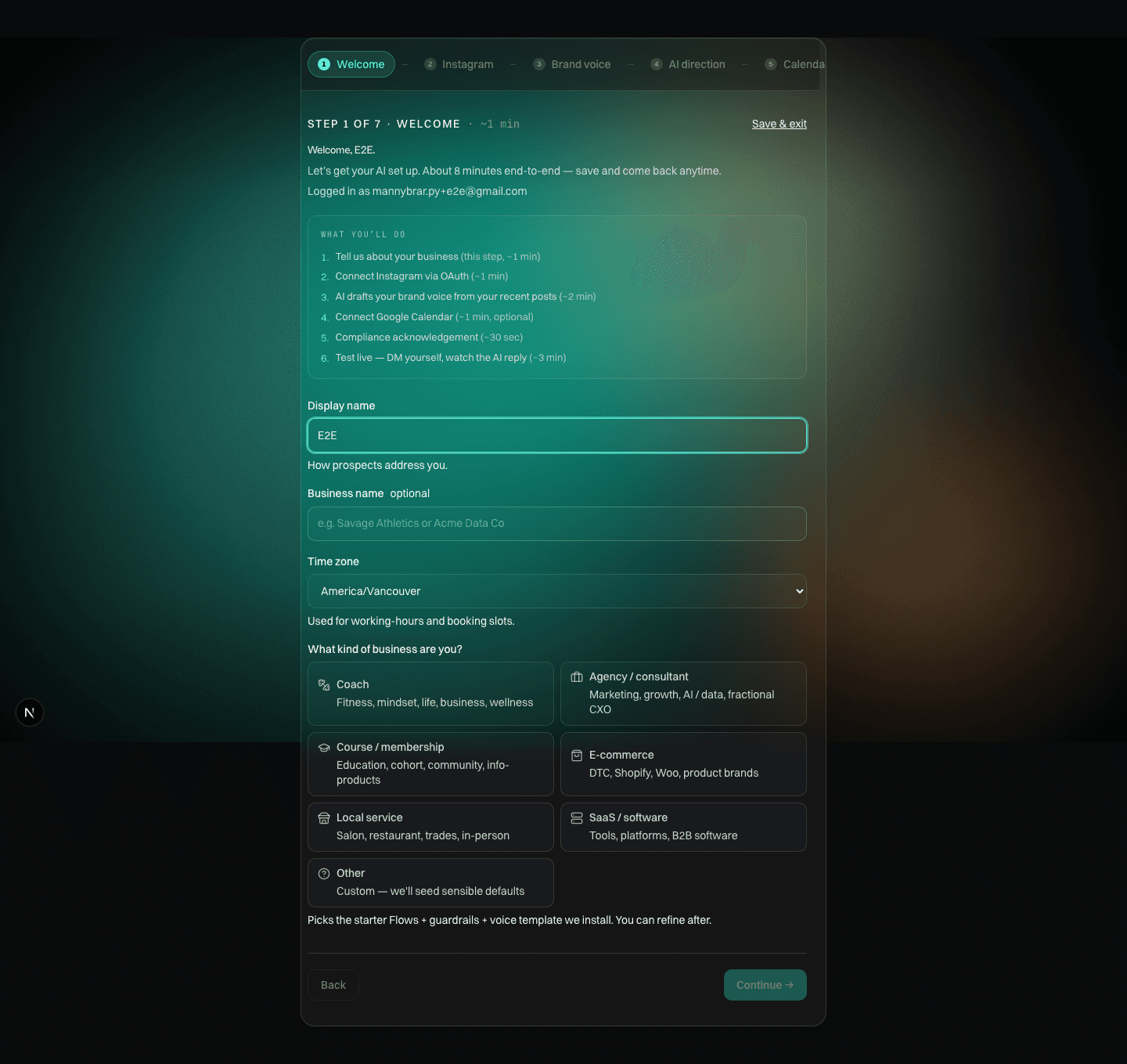
Setup step 1, Tell us about your business: fields for your name, business name, and time zone, plus a grid of business types to pick from.
A real DOMS screen from step 1 of the setup.

Step 2 of 7 about 2 minutes

Connect your Instagram

Lets DOMS see and answer your DMs.

You’ll need: An Instagram professional account — Creator or Business type. See “Before you start” above.

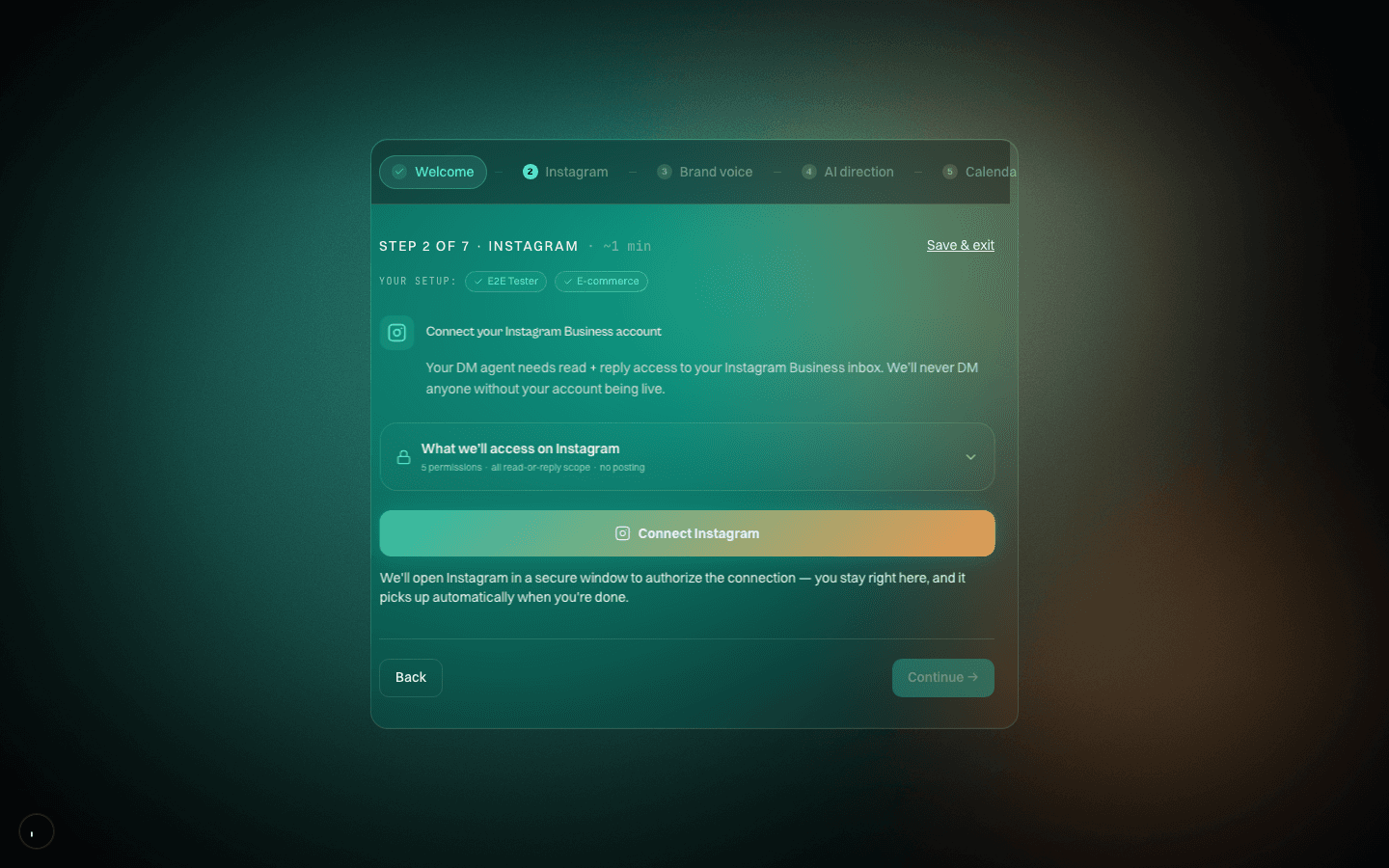
Press Connect Instagram. Instagram opens in a secure window, you approve the connection, and you’re back where you left off. Before you press anything, the screen shows exactly what DOMS can do — and what it never will. It only ever writes replies: no posting, no following, no messaging strangers.

We connect securely through Instagram. We never see your password. You can switch DOMS off anytime from your Instagram settings, and it can only do what you allow.

You’ll know it worked: You see “Connected as @yourhandle.”

If that didn’t work: Most often the account is still a personal one — switch it (see “Before you start”), then press Connect again.

Setup step 2, Connect your Instagram: a Connect Instagram button with a panel listing what DOMS can do and what it never will.
A real DOMS screen from step 2 of the setup.

Step 3 of 7 about 3 minutes

Teach it your voice

Makes every reply sound like you, not a bot.

You’ll need: Your Instagram from step 2 — that’s what it reads to learn how you write.

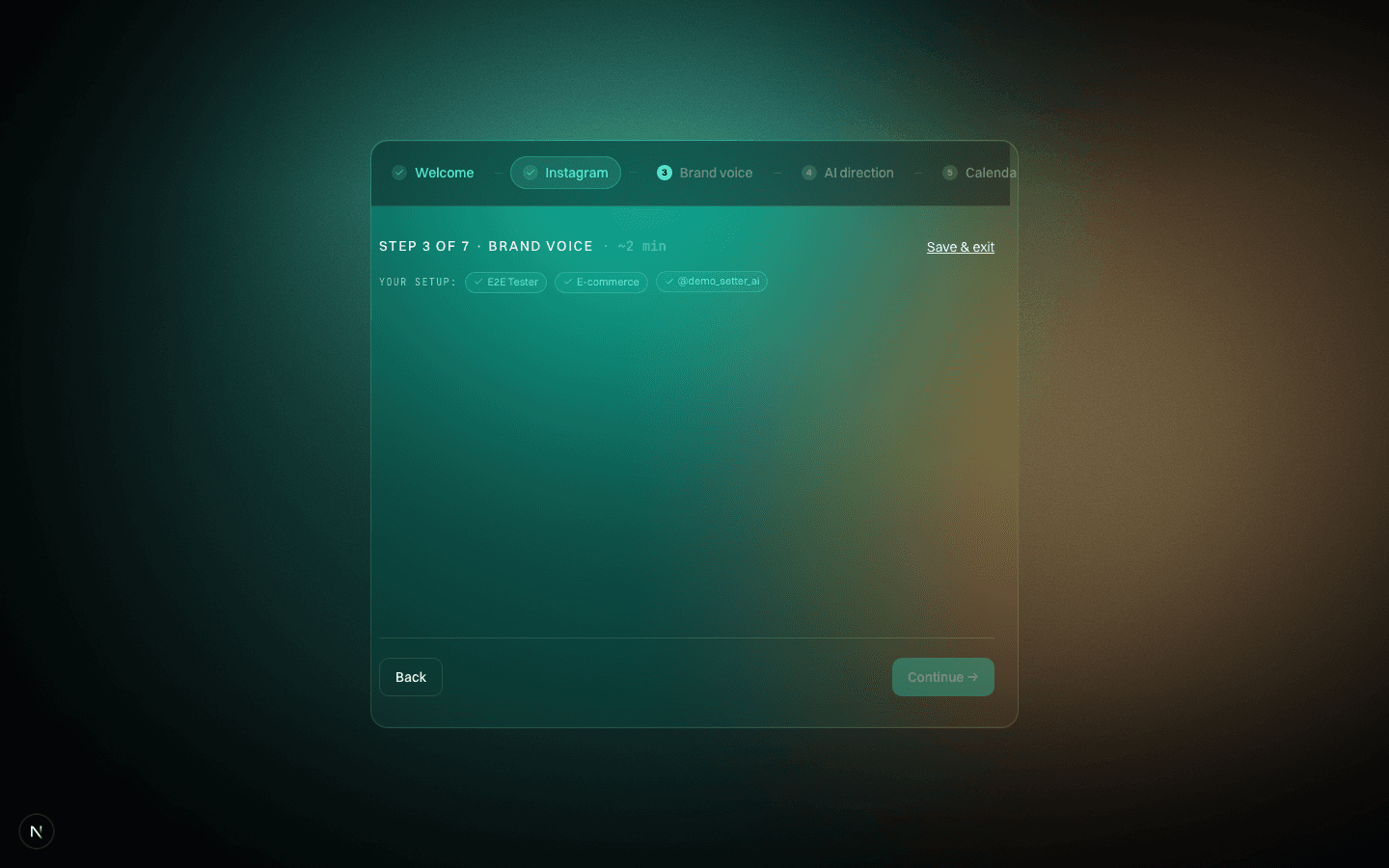
DOMS reads your recent posts and drafts your voice for you — you’ll see “Learning your voice” while it works. Then fine-tune it with simple dials — formality, warmth, humor, directness — and watch a live preview change as you adjust each one.

It only ever writes replies. It never posts, follows, or cold-DMs strangers.

You’ll know it worked: The preview reply reads like something you’d actually send.

If that didn’t work: If DOMS couldn’t read enough of your posts, it offers ready-made voices to start from — pick the closest one and adjust the dials.

Setup step 3, the Brand voice screen: DOMS drafts your voice from your recent posts, with your setup so far shown as ticks at the top.
A real DOMS screen from step 3 of the setup.

Step 4 of 7 about 1 minute

Pick what it should do

Points every conversation at the outcome you care about.

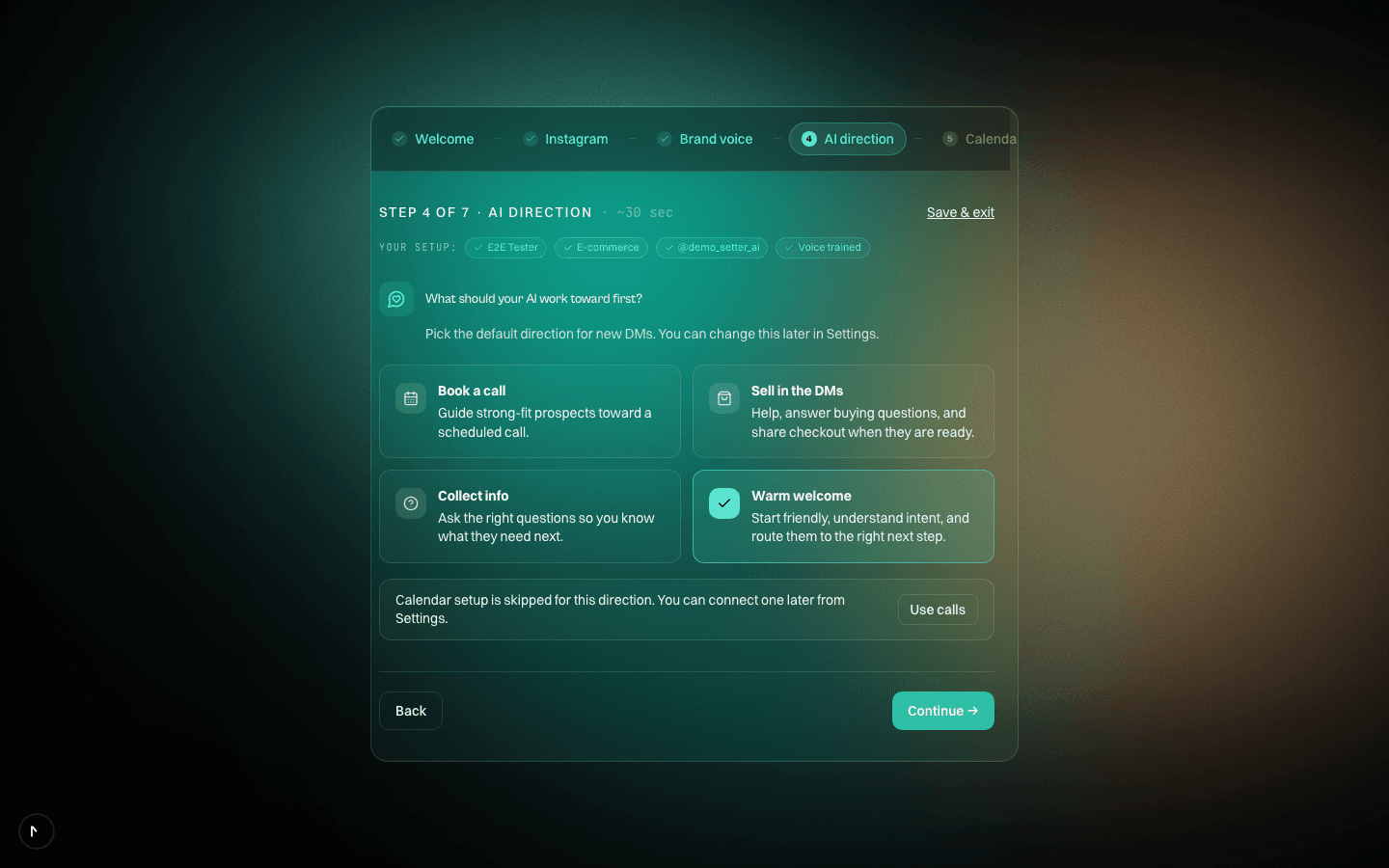
Choose one of four directions for new DMs: Book a call, Sell by chat, Collect info, or a Warm welcome. If you pick Sell by chat, you can add your offer’s name, price, and checkout link now — or leave it for later.

You’ll know it worked: Your chosen direction is highlighted.

If that didn’t work: Not sure? Pick Warm welcome — friendly first replies that work out what each person needs. You can change direction anytime in Settings.

Setup step 4, Pick what it should do: four direction cards — Book a call, Sell by chat, Collect info, and Warm welcome.
A real DOMS screen from step 4 of the setup.

Step 5 of 7 about 2 minutes · optional

Connect your calendar

So DOMS can book calls straight into the calendar you already use.

Connect Google Calendar — other calendars appear here when they’re available on your account. From then on, when someone’s ready to talk, your AI offers times and the call lands on your calendar. Skip this if you don’t book calls. If you picked Book a call in step 4, this is the step that makes it real.

You’ll know it worked: Your calendar shows as connected.

If that didn’t work: If the connection fails, skip for now — you can connect it later in Settings.

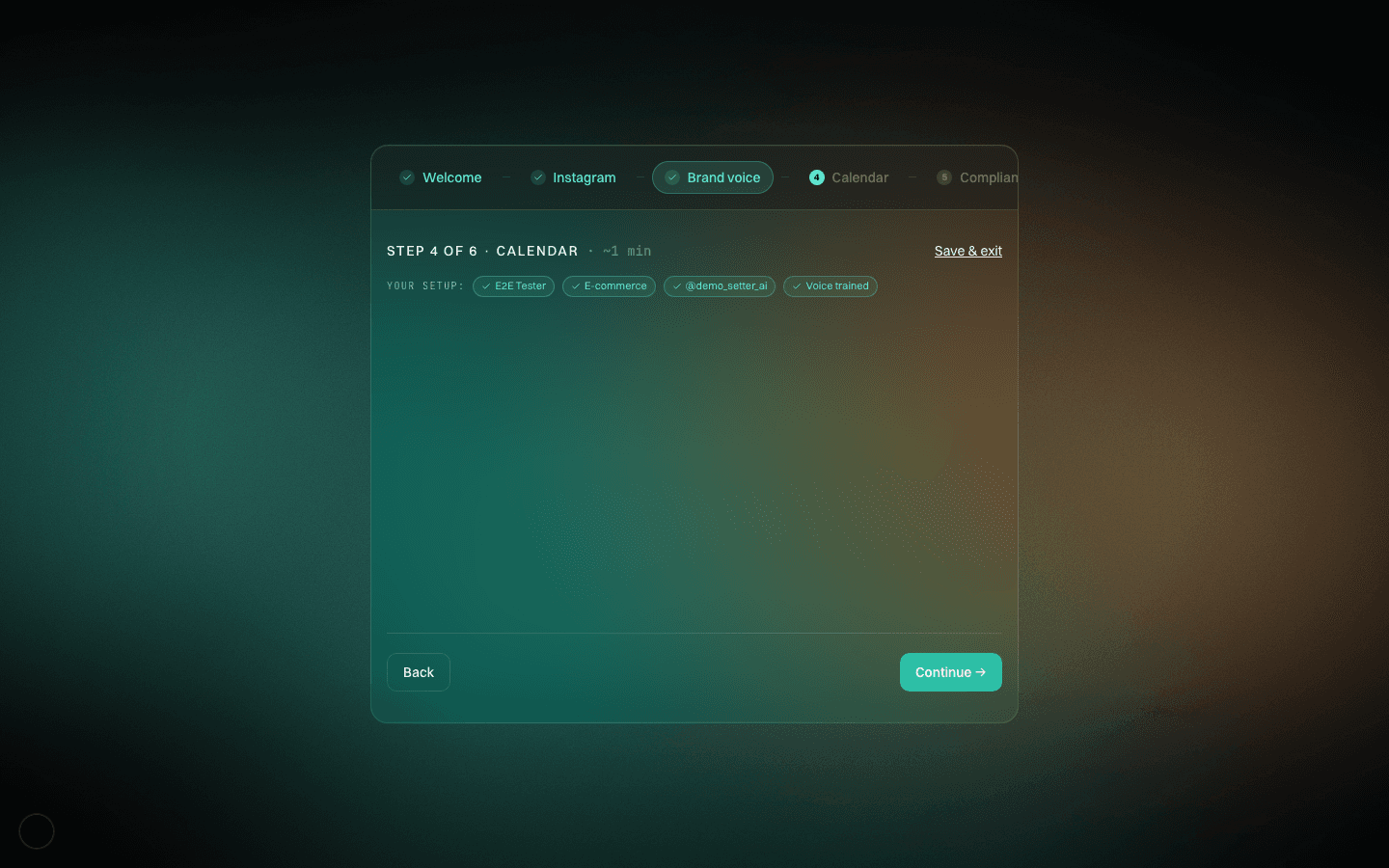
Setup step 5, Put booked calls on your calendar: connect Google Calendar so booked calls land on the calendar you already use.
A real DOMS screen from step 5 of the setup.

Step 6 of 7 about 1 minute

Turn on safety & the AI notice

DOMS spaces out messages and sends links as tappable buttons so Instagram stays happy — and it adds the AI notice for you where the law requires it.

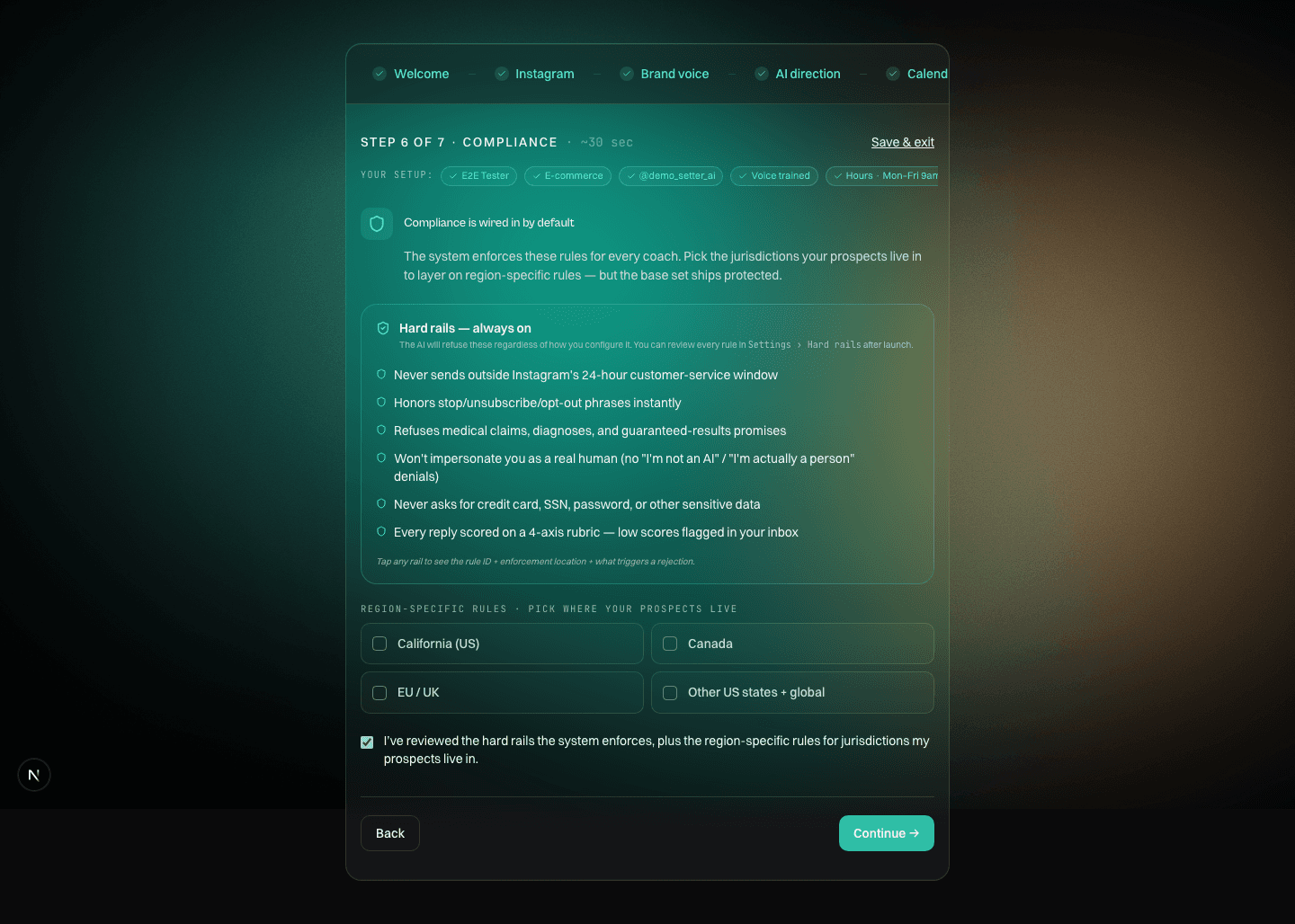
The protections are already on — for every coach, no setup needed. You just tick where your prospects live (California, Canada, EU/UK, or elsewhere) and DOMS adds the regional rules too. Ticking EU/UK fills in a short, friendly AI-notice line for you. You control the wording.

Nothing on this screen is homework. The protections are on before you arrive — this step just shows you what’s already working for you.

You’ll know it worked: The always-on protections show as active — and if you ticked EU/UK, your AI-notice line is filled in.

If that didn’t work: If Continue won’t light up after ticking EU/UK, the AI-notice line needs words in it. A starter line is filled in for you — keep it or make it yours.

Setup step 6, safety and the AI notice: always-on protections shown as active, with tick boxes for where your prospects live.
A real DOMS screen from step 6 of the setup.

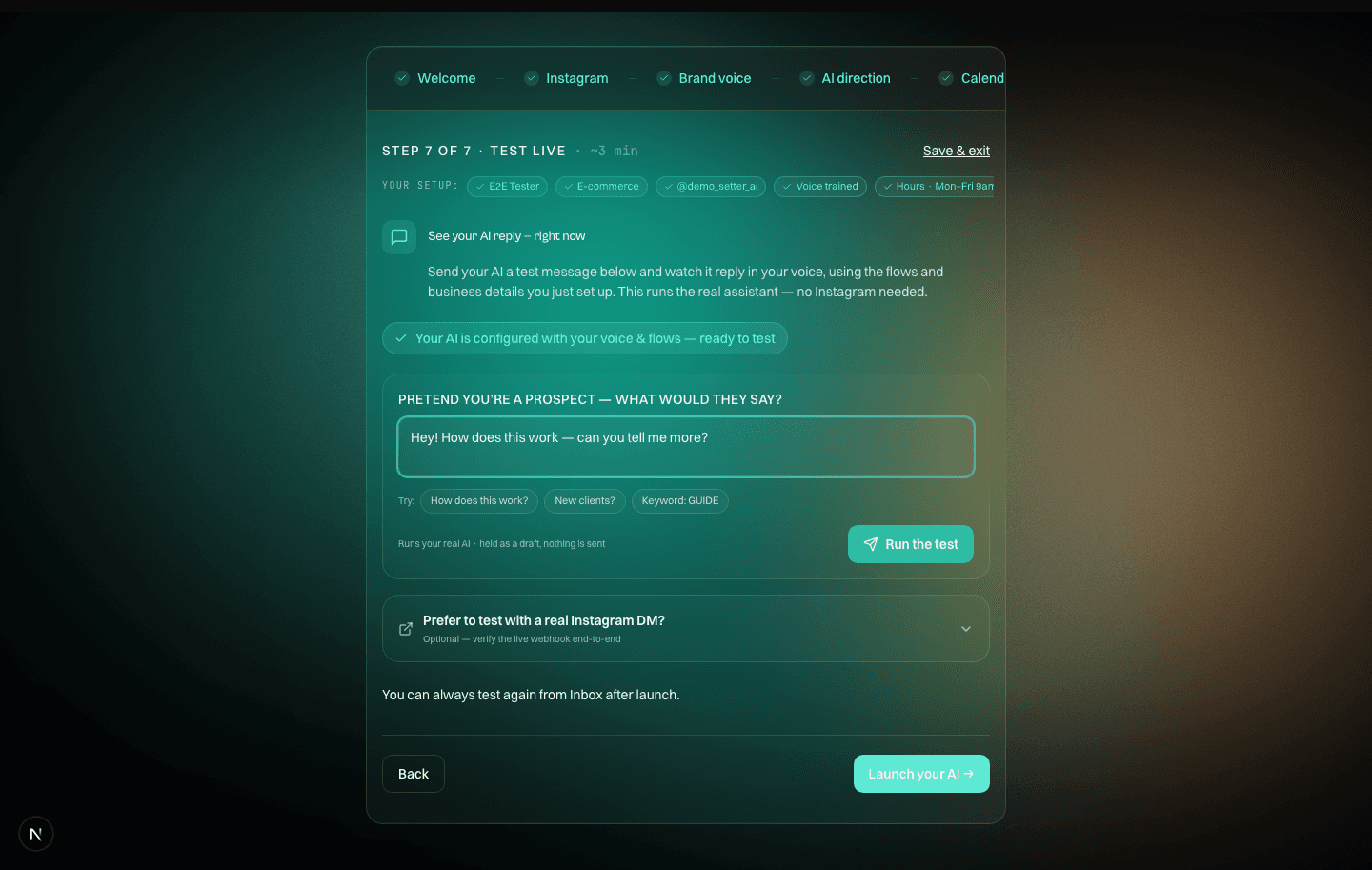
Step 7 of 7 about 2 minutes

Send a test DM and watch it reply

Proves it works, in your voice, before a single real follower sees anything.

Type a message a prospect might send — something like “How does this work?” — and press Run the test. Your real AI replies in seconds, using the voice and direction you just set up. No Instagram needed, and no real follower sees a thing. Happy with it? Press Launch your AI.

Nothing goes out to a real follower until you’re happy.

You’ll know it worked: You get a reply that sounds like you.

If that didn’t work: If the reply misses your tone, hop back to step 3 and nudge the dials, then test again. If it asks you to connect Instagram first, that’s step 2.

Setup step 7, the test screen: type a message the way a prospect would, press Run the test, and watch your AI reply. Nothing is sent to a real follower.
A real DOMS screen from step 7 of the setup.

The finish line

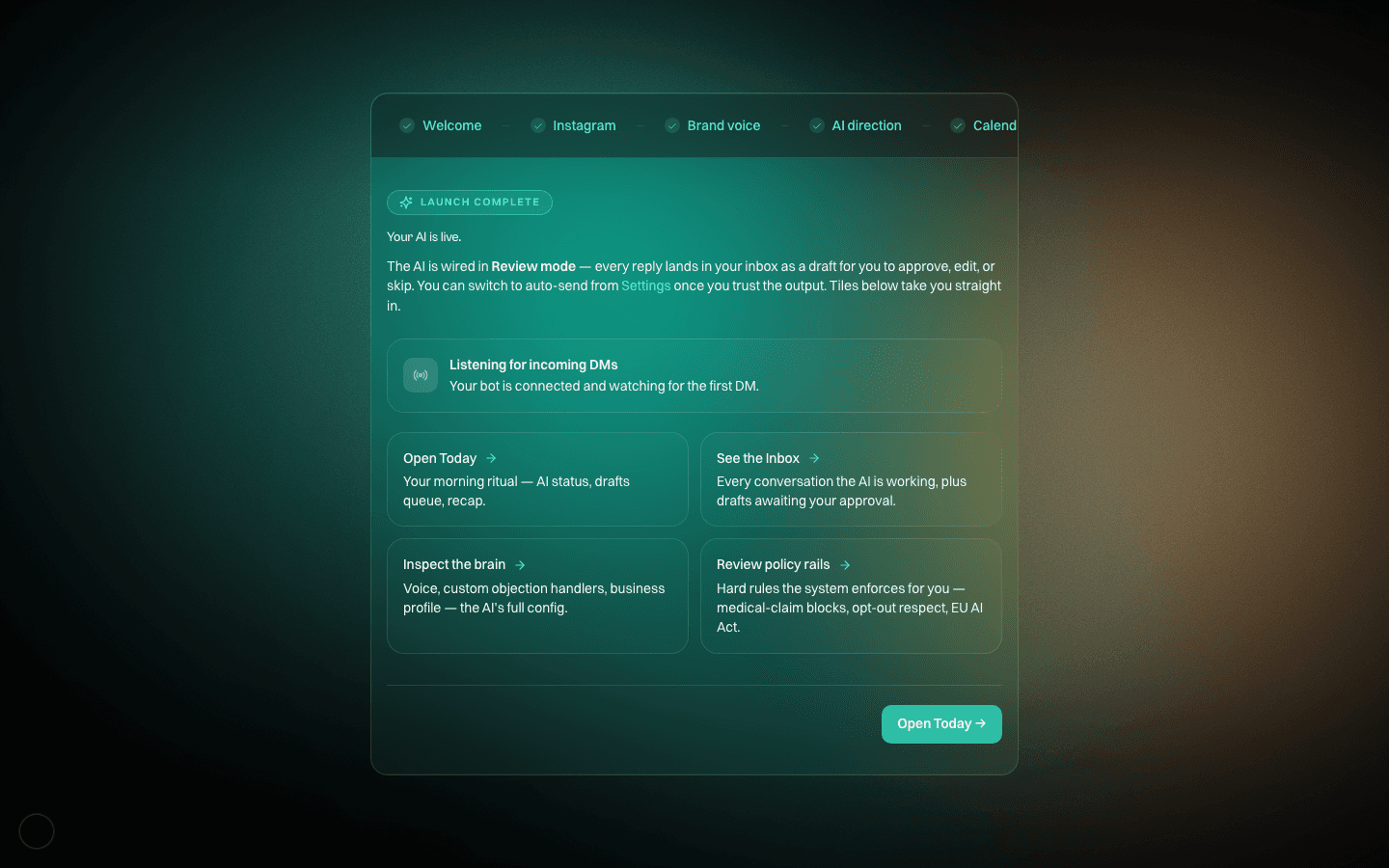
“Your AI is live.”

That’s the screen that greets you at the end. You land in Review mode: every AI reply waits in your inbox for your approval, so nothing sends until you say so. When you trust the replies, switch to Auto mode in Settings — and take back any conversation whenever you want.

The finish screen: “Your AI is live”, with the AI listening for incoming DMs and shortcuts to Today and the Inbox.
The real DOMS launch screen at the end of setup.

After you go live

Three good next moves.

None of these are part of setup — your AI is already answering. When you’re ready for more, start here.

  1. Build your first comment-to-DM Flow

    Pick a post, choose a word like GUIDE, and when someone comments it, DOMS gets a DM ready for them with your link — then keeps the conversation going in your voice. You approve each one, or let it send on its own once you’re in Auto mode. Start it from the Flows page.

  2. Check your morning drafts on Today

    Open the Today page with your coffee. Overnight replies wait there as drafts, each one written in your voice — approve the good ones in a few minutes and nobody who messaged you at 2am goes unanswered.

  3. Turn on Auto mode when you trust it

    After some time in Review mode you’ll know when the replies are ready to go out on their own. Flip to Auto mode in Settings — DOMS sends for you, and you can still take over any conversation in one tap.

Common questions

The things coaches ask before they connect.

Is my Instagram account safe?
You approve every reply before it sends — that’s the default. Messages go out paced the way a busy human sends them, links go out as tappable buttons, and DOMS only ever messages people who message or comment you first. It never asks for your password: it connects through Instagram’s official connection, and you can switch it off anytime.
Does it really sound like me?
It learns from your own posts and messages, and it remembers each conversation — so it never repeats itself or asks a question that’s already been answered. You hear it for yourself in step 7, before any real follower does.
Do I have to approve every message?
By default, yes — that’s Review mode, and it’s how every coach starts. When you trust the replies, switch to Auto mode in Settings and DOMS sends on its own.
Can it actually book calls?
Yes. Connect your calendar in step 5 and, when someone’s ready, your AI offers times and puts the call straight on your calendar.
What if it says something wrong?
In Review mode you catch it before it sends. You set the boundaries it works within, you can take over any conversation in one tap, and there’s a single switch that pauses everything.
Will people think they’re talking to a human?
You can turn on a short, friendly note that says they’re chatting with an AI — and where the law requires it (like the EU), the setup helps you switch it on. You control the wording. It’s never a fake name or photo.

Words you’ll see

Six words, and that’s the whole vocabulary.

Everything else inside DOMS is plain English. These six earn a definition.

Flow
One automatic conversation: a keyword or a comment starts it, and DOMS replies in your voice toward a goal — like booking a call.
Comment-to-DM
When someone comments a word on your post, DOMS gets a DM ready to send them. You approve it, or let it send on its own in Auto mode.
Your voice
How DOMS writes — learned from your own past messages and posts, and tuned by you in step 3.
Direction
What you want a conversation to achieve: sell, book a call, collect info, or a warm welcome. You pick it in step 4.
Review mode & Auto mode
You approve each reply before it sends (Review), or let DOMS send on its own (Auto). Review is the default for every new coach.
AI notice
The short line that tells people they’re chatting with an AI, where the law requires it. You control the wording.

That’s the whole setup

Ready when you are.

Seven steps, about fifteen minutes, and a reply in your own voice at the end of it. Your progress saves as you go — start now, finish whenever suits you.